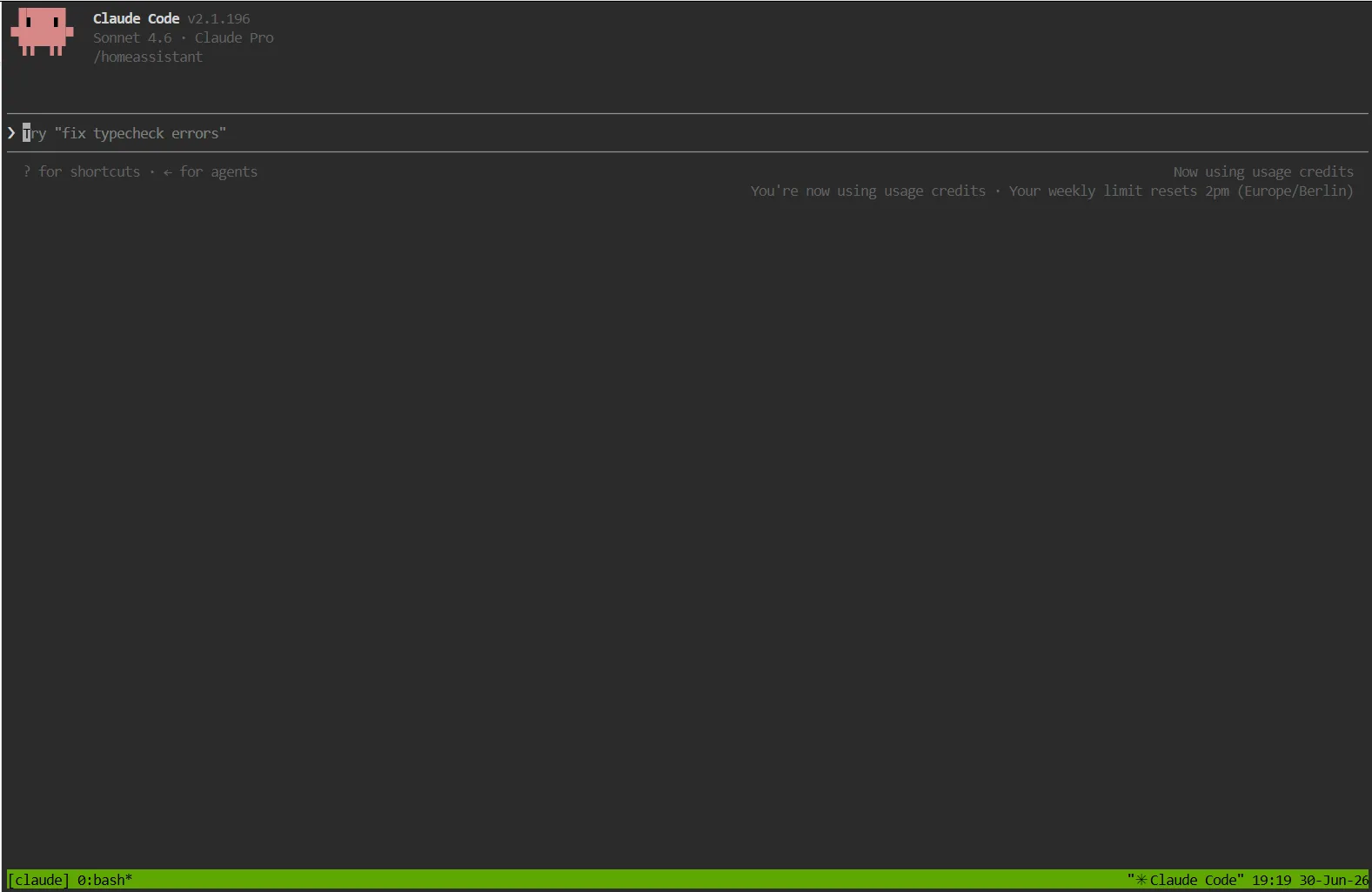
Claude Code for Home Assistant
Forked from apbb2/robsonfelix-hass-addons,
which itself is based on robsonfelix/robsonfelix-hass-addons.
This fork adds a socat-based port forwarding fix for the Playwright MCP CDP endpoint.
Run Claude Code, Anthropic's AI-powered coding assistant, directly in your Home Assistant sidebar with full access to your configuration.
Quick Start
claude "List all my automations"
claude "Turn off all lights in the living room"
claude "Create an automation to turn on lights at sunset"
claude "Why isn't my motion sensor automation working?"
Requirements
- Home Assistant OS or Supervised installation
- Anthropic account (authentication handled in terminal)
Features
- Web Terminal: Access Claude Code through a browser-based terminal
- Config Access: Read and write Home Assistant configuration files
- hass-mcp Integration: Direct control of HA entities and services
- Session Persistence: Optional tmux integration to preserve sessions across page refreshes
- Customizable Theme: Choose between dark and light terminal themes
- Claude Auto-Start: Claude starts automatically when the terminal opens (optional)
- Multi-Architecture: Supports amd64, aarch64, armv7, armhf, and i386
- Secure Authentication: Claude Code handles its own authentication securely
Setup
1. Install the Add-on
- Add the repository to Home Assistant
- Install the "Claude Code" add-on
- Start the add-on
- Open the Web UI from the sidebar
2. Authenticate with Claude Code
On first launch, Claude Code will prompt you to authenticate:
- Open the terminal from the HA sidebar
- Type
claudeto start (or enableclaude_autostart) - Follow the authentication prompts
- Your credentials are stored securely by Claude Code
Note: The add-on does NOT require you to enter API keys in the configuration. Claude Code handles authentication itself, storing credentials securely in its own configuration directory. This is more secure than storing keys in Home Assistant's add-on config.
Using Claude Code
Basic Usage
Once authenticated, Claude Code is ready to help with:
- Editing Home Assistant YAML configurations
- Creating automations and scripts
- Debugging configuration issues
- Writing custom integrations
Home Assistant Integration
With hass-mcp enabled, Claude can:
- Query entity states: "What's the temperature in the living room?"
- Control devices: "Turn off all lights in the bedroom"
- List services: "What services are available for climate control?"
- Debug automations: "Why didn't my morning routine trigger?"
Example Commands
# Start interactive session
claude

# One-off commands
claude "Add a new automation that turns on the porch light at sunset"
claude "Check my configuration.yaml for errors"
claude "List all unavailable entities"

# Continue previous conversation
claude --continue
Keyboard Shortcuts
| Shortcut | Command |
|---|---|
c |
claude |
cc |
claude --continue |
ha-config |
Navigate to config directory |
ha-logs |
View Home Assistant logs |
Configuration Options
| Option | Description | Default |
|---|---|---|
enable_mcp |
Enable HA integration | true |
terminal_font_size |
Font size (10-24) | 14 |
terminal_theme |
dark or light | dark |
working_directory |
Start directory | /homeassistant |
session_persistence |
Use tmux for persistent sessions | true |
claude_autostart |
Auto-start Claude when terminal opens | false |
auto_update_claude |
Auto-update Claude Code on startup | true |
model |
Claude model to use | claude-sonnet-4-6 |
Model Selection
Four models are available:
| Model | Best for |
|---|---|
claude-sonnet-4-6 |
Best balance of speed and capability (default) |
claude-fable-5 |
Most powerful, for the hardest tasks |
claude-opus-4-8 |
Very capable, for complex tasks |
claude-haiku-4-5-20251001 |
Fastest, for simple queries |
Enable auto_update_claude to ensure new models become available as Anthropic releases them, without needing an add-on update.
Update Notifications
When auto_update_claude is enabled, the add-on checks for newer versions of Claude Code in the background every hour. If an update is available:
- A persistent notification appears in the HA UI notification bell with the title "Claude Code Update Available"
- A yellow banner is shown in the terminal each time you open a session
Both clear automatically after restarting the add-on, which installs the latest version on startup.
File Locations
| Path | Description | Access |
|---|---|---|
/homeassistant |
HA configuration directory | read-write |
/share |
Shared folder | read-write |
/media |
Media folder | read-write |
/ssl |
SSL certificates | read-only |
/backup |
Backups | read-only |
Session Persistence
When session_persistence is enabled, the add-on uses tmux to maintain your terminal session. This means:
- Your session survives browser refreshes
- You can disconnect and reconnect without losing context
- Claude Code conversations are preserved
tmux Commands
If you're new to tmux:
| Key | Action |
|---|---|
Ctrl+b d |
Detach from session (keeps it running) |
Ctrl+b [ |
Enter scroll/copy mode (use arrow keys) |
| Mouse wheel | Scroll up/down (auto-enters copy mode) |
q |
Exit scroll/copy mode |
Copy and Paste in tmux
Since tmux captures mouse events, copy/paste works differently:
| Action | How to do it |
|---|---|
| Copy | Hold Ctrl+Shift while selecting text with mouse |
| Paste | Shift+Insert or middle-click |
| Alternative paste | Ctrl+Shift+V (browser dependent) |
Note: Regular right-click paste and simple mouse selection won't work because tmux intercepts these events for scrolling.
Authenticating Claude Code (first launch)
The authentication URL is displayed on a single line for easy clicking.
- Click the link — it should open in a new tab
- Complete authentication in the browser and copy the auth code
- Click back on the terminal and paste with
Shift+InsertorCtrl+Shift+V
If clicking the link doesn't work, hold Ctrl+Shift while selecting the URL with your mouse to copy it, then paste it into your browser's address bar.
Scrolling and Session Persistence Trade-offs
With tmux (session_persistence: true):
- ✅ Session survives browser refresh/disconnect
- ✅ Can detach and reattach to running sessions
- ✅ Long-running Claude tasks continue in background
- ✅ Mouse wheel scrolling works (enters copy mode automatically)
- ✅ 20,000 line scrollback buffer
- ⚠️ Use middle-click or Shift+Insert to paste (right-click paste may not work)
Without tmux (session_persistence: false):
- ✅ Native browser scrolling
- ✅ Simpler terminal behavior
- ✅ Standard copy/paste behavior
- ❌ Session lost on browser refresh
- ❌ Session lost if add-on restarts
Recommendation:
- Use session_persistence: true (default) if you run long tasks or need to survive disconnects
- Use session_persistence: false if you need standard copy/paste behavior
Security
Authentication
- No API keys in add-on config: Claude Code handles authentication itself
- Credentials are stored securely in Claude Code's own directory (
~/.claude/) - This is more secure than storing keys in Home Assistant's configuration
Container Security
- The Supervisor token is automatically managed and not exposed
- File access is limited to mapped directories
- The add-on runs in an isolated container
Troubleshooting
Authentication issues
Claude Code manages its own authentication. If you have issues:
1. Type claude to start the authentication flow
2. Follow the prompts to log in or enter your API key
3. Credentials are saved automatically for future sessions
Can't copy the URL or paste the auth code? The terminal uses tmux, which changes how copy/paste works. See Copy and Paste in tmux for instructions.
hass-mcp not working
- Verify
enable_mcpis true in configuration - Check add-on logs for connection errors
- Restart the add-on after configuration changes
Terminal not loading
- Check that the add-on is running (green indicator)
- Try refreshing the page
- Check browser console for errors
- Review add-on logs for ttyd errors
Session not persisting
- Ensure
session_persistenceis set to true - The session is named "claude" - it will auto-attach on reconnect
Configuration changes not applying
After changing configuration:
1. Save the configuration
2. Restart the add-on completely
Comments (0)
No comments yet — be the first.